
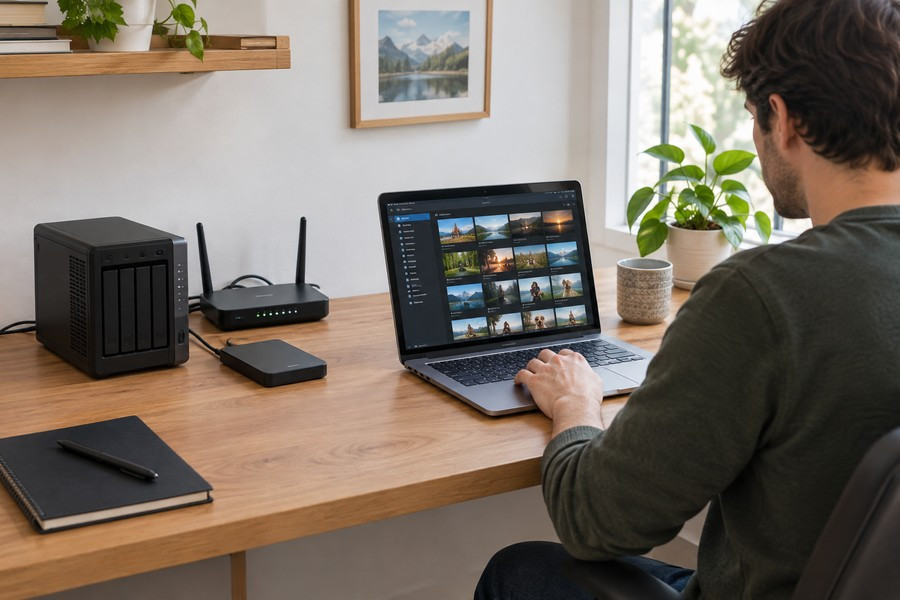
Build a Low-Cost Home Server for More Control and Fewer Subscriptions
A home server can be a useful way to store files, run personal services, and reduce the need for paid subscriptions. The project requires some money at the start, but the cost may be balanced over time by hosting your own movies, television shows, music, comics, and other media.
You do not need expensive equipment to begin. A small single-board computer may be enough for simple tasks, while a stronger desktop computer can handle more users and demanding services. An older small desktop or unused personal computer can also make a good starting point.
Start With Hardware You Already Have
Buying new parts may be costly right now. Computer memory and other components can be difficult to find, which has pushed up prices for many types of hardware. Even small computers that were once inexpensive can now cost hundreds of dollars.
Because of this, look around your home before buying anything. An older computer that still works may be powerful enough for file storage, media streaming, and basic home services. A good sale or used system can also lower the starting cost.
For the operating system, a free Linux distribution is usually the best choice. Linux works with a wide range of hardware and gives you many options for installing and managing server software. It also avoids the cost of a paid operating system.
Choose a Simple Server Operating System
A server-focused version of Linux is designed to use fewer system resources than a regular desktop installation. Popular choices include Ubuntu Server, Debian, and a lightweight version of the operating system made for small single-board computers. Each option can provide a minimal foundation for your server.
These systems usually do not include a graphical desktop. Instead, you will see a black terminal window after the computer starts. This may look unfamiliar, but most server work can be done from another computer through a terminal or from a web browser. A graphical interface can be added, but it is often unnecessary.
During the first setup, you may need to create users, choose passwords, and connect the server to your home network. After that, the terminal will be the main place for system maintenance.
Connect From Another Computer
You can control the server from another computer by using Secure Shell, also called SSH. Linux and macOS computers include terminal programs for this task. Windows computers can use Command Prompt, Windows Terminal, or PowerShell.
Open a terminal and enter the SSH command with the server's username and network address. The system will ask for the account password before allowing access. If the username on the server matches the username on the computer you are using, the username may not need to be written at the beginning of the command.
Before installing extra software, update the server. The exact command depends on the Linux distribution. On Ubuntu and Debian systems, the usual process is:
- Run sudo apt update to download the latest package information.
- Run sudo apt upgrade to install available updates.
The word sudo means “superuser do.” It allows an approved user to perform administrative tasks. You will use it often while installing and maintaining server software.
Run Services Inside Containers
One useful tool for a home server is Docker. It runs applications inside separate containers. Each container keeps an application and its files apart from the main operating system. If one application stops working, the problem is less likely to affect the entire server or every other application.
Some services can be installed directly onto the server, sometimes called running them on bare metal. Others work better inside containers. Containers make it easier to install, remove, update, and manage different programs without changing the main system.
Install Docker by first updating the server's package list, then following the installation steps for the Linux distribution you selected. The setup process is usually quick once the required packages are available.
Manage Apps With Compose Files
Many containerized applications use a Docker Compose file. This file describes the containers, settings, storage locations, and connections needed by an application. Not every program requires one, but Compose can make a setup easier to understand and adjust.
Create a dedicated folder on the server for these files. Compose files use YAML formatting and normally end with the .yml extension. When creating one in a basic text editor on Windows, choose “All Files” instead of a text document format, then save it with a name such as docker-compose.yml.
To start an application, move into the folder that contains its Compose file by using the cd command. Then run:
sudo docker-compose up -d
The -d option starts the application in the background, allowing you to continue using the terminal.
Plan Your Storage Carefully
Container software uses its own storage system, which can make file locations confusing at first. A Compose file often connects a folder on the physical server to a folder inside the container. This connection is called a bind mount.
A basic example may look like this:
volumes: - type: bind source: /path/to/your/directory target: /a/folder/in/Docker
The source is the folder on your server. The target is where the application sees that folder inside its container. Some applications provide a starter Compose file that you can change to match your storage layout. Others may automatically create folders with placeholder names that you must replace.
After the system is ready, you can add the storage drives connected to the server and begin installing services. Options include a free media server, a comic library manager, or a VPN for reaching your home network while away. With an older computer, free software, and careful storage planning, a basic home server can grow as your needs change.